

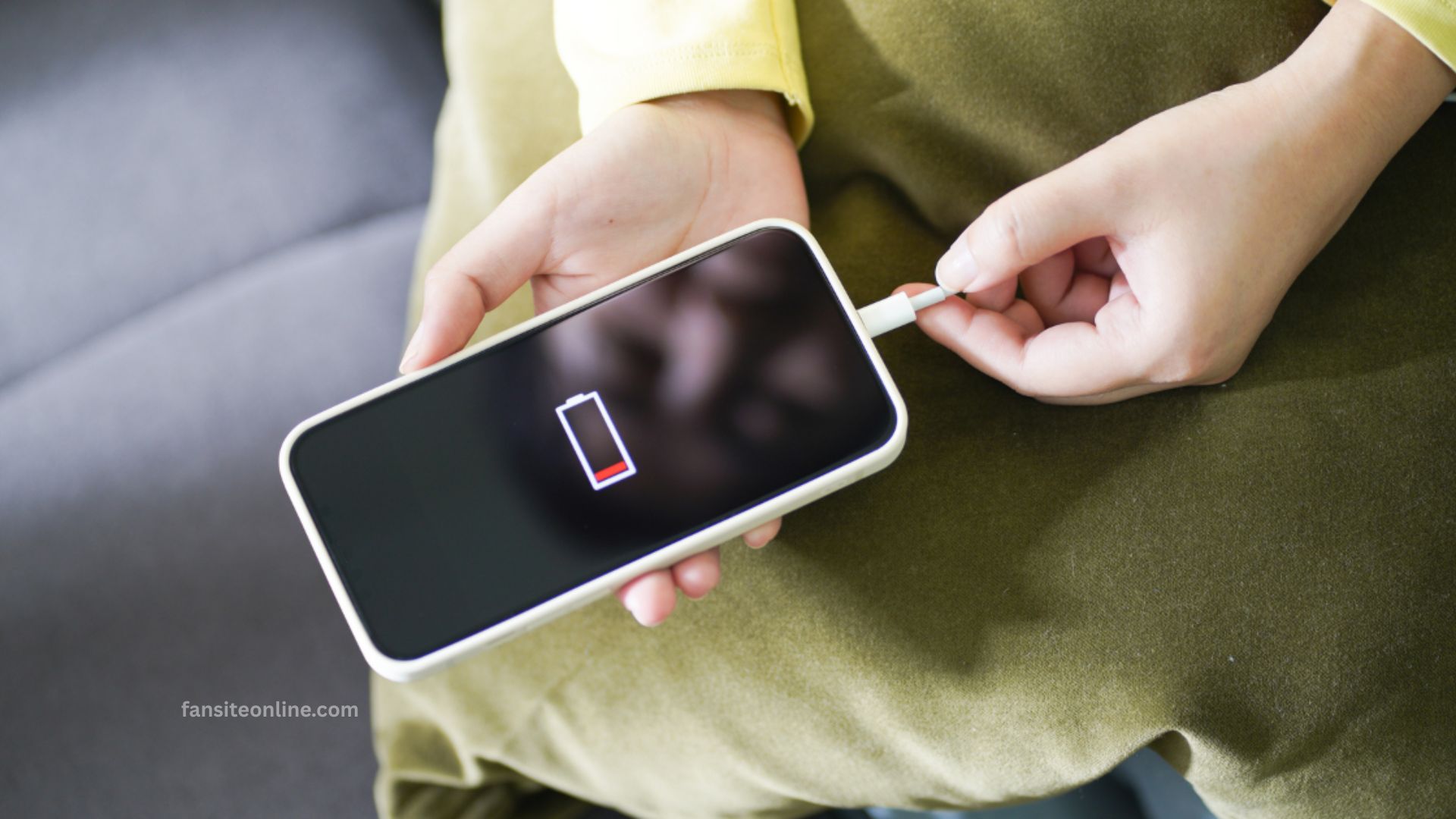
Today fast-paced digital world, our smartphones are essential companions, but their battery life often falls short of our expectations. Whether you’re navigating daily tasks, streaming media, or staying connected on the go, conserving battery power is key. Learning how to make your cell phone battery last much longer can save you from constant charging, extend your device’s lifespan, and boost overall performance.
From adjusting settings to adopting smart usage habits, simple strategies can lead to significant improvements. This guide offers practical tips and proven techniques to help you get the most out of every charge, keeping your phone powered when you need it most.
Why Cell Phone Batteries Drain Quickly
Understanding why your battery depletes quickly is the first step toward optimizing it. Common reasons include:
- Background app activity
- High screen brightness
- Push notifications
- Poor signal strength
- Power-hungry apps
- Location services and GPS
By managing these factors, you can significantly improve battery performance.
Read More: How to Cast Your Phone Screen to TV
Optimize Screen Settings
Your display is one of the biggest power consumers. Adjusting display settings can help extend your phone’s battery life.
Lower Brightness
Keep your screen brightness as low as comfortably possible. Most phones also offer an auto-brightness setting that adjusts based on ambient lighting.
Reduce Screen Timeout
Set your phone’s screen timeout to 30 seconds or less. This prevents the display from staying on unnecessarily when the device is idle.
Use Dark Mode
Many modern phones, especially those with OLED or AMOLED screens, benefit from dark mode, which uses less power than light backgrounds.
Manage Background Apps and Processes
Background apps often use data, location, and power—even when you’re not actively using them.
Close Unused Apps
Manually close apps after you’re done using them. On Android and iOS, you can swipe them away from the multitasking screen.
Limit Background Activity
For Android:
- Go to Settings > Battery > Background usage limits
- Restrict apps that don’t need to run in the background
For iPhone:
- Go to Settings > General > Background App Refresh
- Turn off background refresh for apps that aren’t critical
Turn Off Unnecessary Features
Disabling features that aren’t needed in the moment can dramatically conserve battery.
Airplane Mode
When in areas with poor signal, your phone uses more energy searching for a network. Turning on Airplane Mode in such situations saves power.
Disable Bluetooth, Wi-Fi, and GPS
Turn off Bluetooth, Wi-Fi, or Location Services when not in use. These features scan continuously and can drain power quickly.
Use Battery Saver or Low Power Mode
Most smartphones offer built-in modes to conserve energy.
- Android: Use Battery Saver Mode from Settings
- iPhone: Enable Low Power Mode from Control Center or Settings
These modes reduce background activity, visual effects, and syncing to prolong battery life.
Update Software Regularly
Operating system and app updates often include battery performance improvements.
- Always keep your OS and apps up to date
- Check for firmware updates from your phone’s manufacturer
Updated software can fix bugs and enhance energy efficiency.
Avoid Extreme Temperatures
Batteries perform poorly in extreme heat or cold, and long-term exposure can degrade them permanently.
- Keep your phone between 32°F and 95°F (0°C to 35°C)
- Avoid leaving your device in a hot car or direct sunlight
- Use your phone in a temperature-controlled environment whenever possible
Charge Your Battery the Right Way
Battery longevity also depends on how you charge your phone.
Avoid 0% and 100% Charges:
Modern lithium-ion batteries don’t like being fully depleted or charged to 100% all the time. Instead, aim to keep your charge between 20% and 80%.
Use the Right Charger:
Always use the original charger or certified alternatives. Cheap or counterfeit chargers can damage your phone’s battery.
Don’t Overcharge Overnight:
Although most phones stop charging when they reach 100%, keeping the battery at 100% for prolonged periods can increase stress on the battery over time.
Remove Power-Draining Apps
Some apps are notorious for draining battery—even when running in the background.
- Go to your phone’s Battery Usage section (Settings > Battery)
- Identify apps with high usage
- Consider uninstalling or replacing with more efficient alternatives
Social media apps, games, and streaming services are common culprits.
Use Lite or Web Versions of Apps
Many companies offer “lite” versions of apps that use less battery and data.
- Facebook Lite
- Messenger Lite
- YouTube Go (on Android)
- Use mobile browser versions of websites instead of apps when possible
These versions are optimized for performance and consume less energy.
Monitor Battery Health
Most modern smartphones let you check your battery’s health.
For iPhone:
- Go to Settings > Battery > Battery Health & Charging
- Look at the Maximum Capacity percentage. Lower percentages indicate a degraded battery.
For Android:
- Go to Settings > Battery
- Use built-in tools or third-party apps like AccuBattery for detailed insights
If your battery health is below 80%, you may consider a replacement.
Minimize Push Notifications
Frequent notifications wake your screen and can drain your battery.
- Go to Settings > Notifications
- Disable push notifications for apps that aren’t critical
- Use Do Not Disturb during sleep hours
Keep Widgets and Live Wallpapers to a Minimum
Interactive or animated home screen elements consume more power.
- Avoid live wallpapers
- Remove unnecessary widgets that constantly update (e.g., weather, calendar, news)
Use Power Banks for Emergency Power
While not a battery-saving tip per se, carrying a portable charger ensures you stay powered throughout the day without depending on a wall outlet.
Choose a high-quality power bank with:
- At least 10,000mAh capacity
- Fast-charging support
- Built-in safety protections
Frequently Asked Questions
What is the best percentage to charge my phone battery to?
For optimal battery health, keep your charge between 20% and 80%. Avoid letting the battery drain to 0% or constantly charging it to 100%.
Does fast charging damage the battery?
Fast charging generates more heat, which can slightly impact long-term battery health. However, most modern phones have built-in protections. Occasional fast charging is fine, but avoid using it constantly if longevity is a priority.
How do I check battery health on my phone?
iPhone: Go to Settings > Battery > Battery Health & Charging
Android: Some models include it in Settings > Battery or use third-party apps like AccuBattery.
Do background apps drain battery?
Yes. Apps running in the background use CPU, memory, data, and battery. You can restrict background activity in your settings to conserve power.
Is it bad to leave my phone charging overnight?
While most phones stop charging at 100%, keeping the battery at full charge for hours can increase wear over time. Occasional overnight charging is okay, but it’s best to avoid it daily.
Does using dark mode actually save battery?
Yes especially on phones with OLED or AMOLED screens. Dark mode reduces the number of lit pixels, helping extend battery life.
Why does my phone battery drain so fast even when not in use?
Common reasons include background apps, location services, notifications, or poor signal. Use battery optimization settings and disable unnecessary features to reduce standby drain.
Conclusion
Improving your smartphone’s battery life doesn’t require drastic changes—just smart, consistent habits. By adjusting screen settings, disabling unused features, managing background apps, and charging your device correctly, you can significantly extend both daily usage time and your battery’s overall lifespan.
