

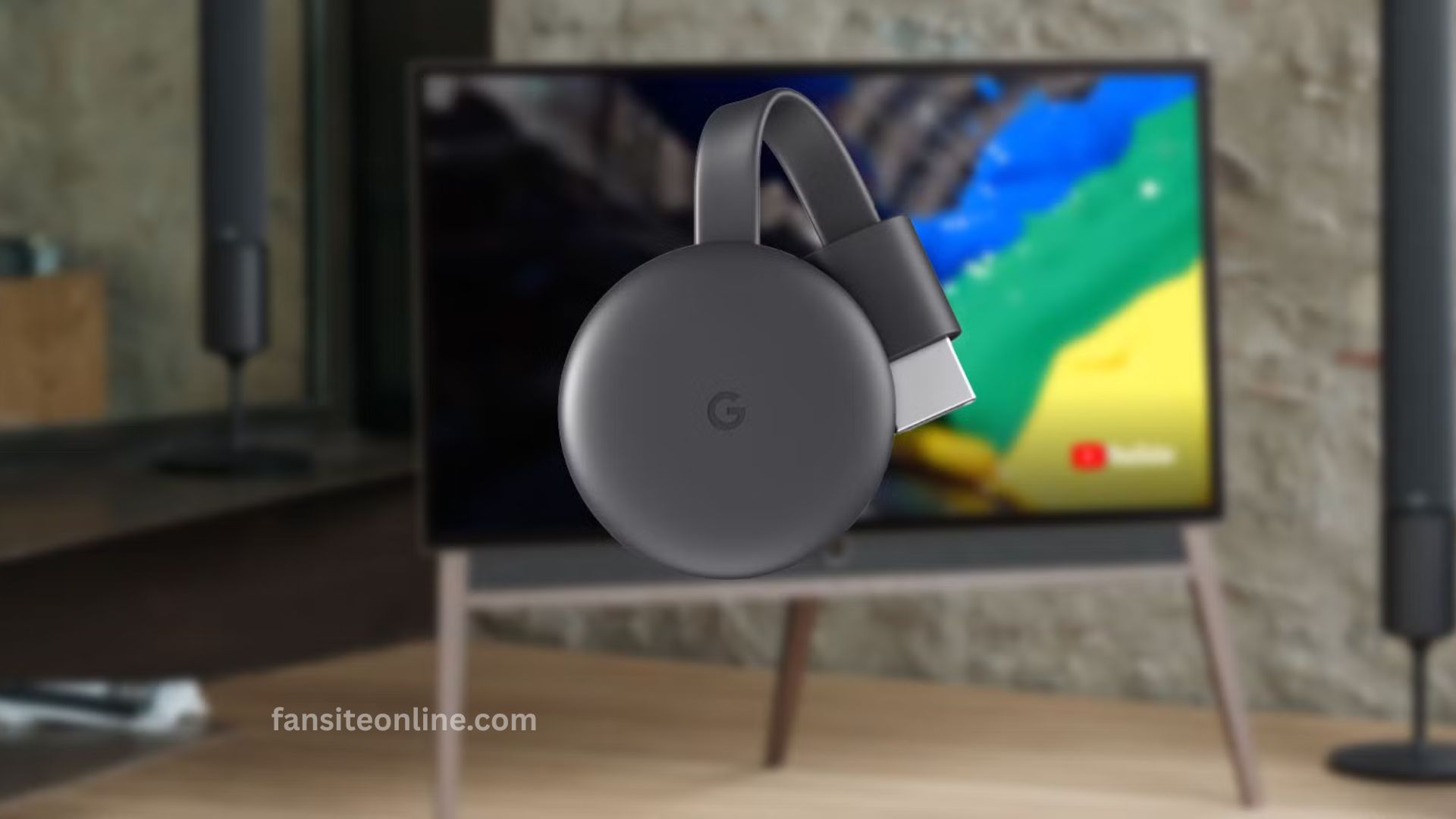
Using Chromecast on your TV is a simple way to stream content from your phone, tablet, or computer directly to a larger screen. To use it correctly, plug the Chromecast into your TV’s HDMI port and connect the power cable.
Switch your TV to the correct HDMI input, then use the Google Home app on your mobile device to set it up and connect it to Wi-Fi. Once connected, open a compatible app like YouTube or Netflix, tap the Cast icon, and select your Chromecast. Your content will now play on the TV, offering a seamless and convenient streaming experience.
Understanding What Chromecast Does
Chromecast is a media streaming device developed by Google. Once plugged into your TV’s HDMI port and connected to Wi-Fi, it allows you to “cast” videos, music, and even your device’s screen to your TV. With support for popular apps like Netflix, YouTube, Disney+, and Spotify, Chromecast bridges the gap between your mobile devices and television.
Unlike traditional streaming boxes with built-in interfaces, Chromecast relies on your phone or computer to control playback unless you’re using the newer Chromecast with Google TV, which includes a remote and its own built-in navigation interface.
Read More: Is a TV box still worth it? Find out now
Setting Up Chromecast on Your TV
To begin using Chromecast, you’ll first need to plug it into your TV’s HDMI port. Once inserted, connect the power cable to a USB port on your TV or to a wall outlet using the included adapter. Turn on your TV and switch the input source to the corresponding HDMI channel. You’ll see a setup screen prompting you to configure the device.
On your phone or tablet, download and open the Google Home app. Make sure your mobile device is connected to the same Wi-Fi network you plan to use for Chromecast. Inside the app, you’ll see an option to add a new device. Follow the instructions to locate your Chromecast and connect it to your network. During the setup, a code will appear on your TV screen; confirm it matches the code in the app to ensure you’re pairing with the correct device.
If you’re using Chromecast with Google TV, you’ll also be prompted to sign in to your Google account and select your favorite streaming services. This makes it easy to personalize your viewing experience and access all your content from a single dashboard.
Casting Content the Right Way
Once setup is complete, casting is simple and intuitive. From your smartphone or tablet, open a Chromecast-compatible app like YouTube or Netflix. When you’re ready to play a video, look for the cast icon (a small rectangle with three curved lines in the corner) and tap it. A list of available Chromecast devices will appear; choose your device, and the content will start playing on your TV. Playback controls remain on your phone, allowing you to pause, rewind, or adjust the volume.
If you’re using a laptop or desktop computer, you can cast directly from the Chrome browser. Open Chrome, click the three-dot menu in the upper-right corner, and select the “Cast” option. You can choose to cast a specific browser tab, your entire desktop, or even individual video files. This feature is especially helpful for mirroring presentations, slideshows, or video calls onto a larger screen.
Optimizing Your Chromecast Experience
To ensure Chromecast performs at its best, consider connecting it to a 5GHz Wi-Fi network instead of the more common 2.4GHz band. A faster network helps reduce buffering and ensures high-quality streaming, especially if you’re watching HD or 4K content. Make sure your Google Home app and Chromecast firmware are always up to date, as new features and performance improvements are regularly rolled out through software updates.
If you often have guests who want to cast their own content, enable Guest Mode through the Google Home app. This allows other users to cast without logging into your Wi-Fi network, using a secure pairing method that relies on proximity and a four-digit PIN.
Using voice control can also enhance your experience. If you have a Google Nest speaker or use Google Assistant on your phone, you can control playback with simple voice commands such as, “Hey Google, play Stranger Things on Netflix,” or “Hey Google, stop casting.”
Common Chromecast Issues and Fixes
Even with proper setup, you may encounter occasional glitches. One of the most frequent problems is Chromecast not appearing as an available device. This typically happens when your phone and Chromecast aren’t on the same Wi-Fi network. Restarting both your mobile device and Chromecast usually resolves this.
If you experience sound issues, such as no audio while casting, first check your TV’s volume and ensure it’s not muted. Then try restarting the app and Chromecast. You can reboot the device through the Google Home app by selecting your Chromecast, tapping on settings, and choosing the reboot option.
Buffering or lag during playback is usually a result of network congestion. Reducing the number of devices connected to your Wi-Fi, moving your router closer to the Chromecast, or switching to a 5GHz connection can all improve performance.
When Chromecast won’t connect to Wi-Fi at all, make sure you’re entering the correct password and that your router isn’t blocking new connections. If the issue persists, a factory reset might be necessary. This can be done by holding the button on the Chromecast until the LED begins to flash, or by choosing the reset option in the Google Home app.
Comparing Chromecast with Other Streaming Devices
While Chromecast offers seamless casting from mobile devices, it competes with other popular streaming platforms like Roku, Fire TV, and Apple TV. Chromecast stands out with its affordability and integration with the Google ecosystem, especially for Android users. Roku and Fire TV devices, on the other hand, come with more traditional remote-controlled interfaces.
Apple TV is a premium option with strong performance and tight integration with iOS devices, but at a higher price point. Choosing the right device depends on your budget and how you prefer to control your streaming content.
When and How to Reset Your Chromecast
If Chromecast becomes unresponsive or fails to perform basic functions after troubleshooting, resetting the device can often fix deeper software issues. A factory reset wipes the device clean and restores its original settings.
You can initiate this through the Google Home app or by physically holding the button on the device for about 25 seconds until the indicator light starts flashing. After the reset, you’ll need to repeat the initial setup process, just like when you first installed it.
Frequently Asked Questions
What do I need to use Chromecast on my TV?
To use Chromecast, you’ll need a TV with an available HDMI port, a power source (either USB or wall adapter), a stable Wi-Fi connection, and a smartphone, tablet, or computer with the Google Home app installed.
Can I use Chromecast without Wi-Fi?
Chromecast requires Wi-Fi for full functionality, but you can use Guest Mode or local casting (for certain apps) without Wi-Fi in limited scenarios. However, streaming from internet-based apps like Netflix or YouTube still requires an internet connection.
Why isn’t my Chromecast showing up on my device?
If your Chromecast doesn’t appear on your phone or computer, make sure both devices are connected to the same Wi-Fi network. Restarting your router, Chromecast, and the casting device often resolves the issue.
How do I reset my Chromecast if it’s not working properly?
To reset Chromecast, press and hold the button on the side of the device for about 25 seconds until the LED starts flashing. You can also reset it through the Google Home app by selecting the device, going to settings, and choosing Factory Reset.
Can I control Chromecast with my voice?
Yes, if you have a Google Assistant-enabled device like a Nest speaker or an Android phone, you can control Chromecast with voice commands. For example, say, “Hey Google, play YouTube on the living room TV.”
Does Chromecast work with iPhones and iPads?
Absolutely. Chromecast supports iOS devices. Download the Google Home app from the App Store and use Chromecast-compatible apps like YouTube, Netflix, and Spotify to cast content from your iPhone or iPad to the TV.
Is there a monthly fee to use Chromecast?
No, Chromecast itself does not have a monthly fee. However, you may need subscriptions for certain streaming services like Netflix, Hulu, or Disney+ that you cast to your TV.
Conclusion
Mastering how to use Chromecast on TV correctly opens up a world of convenient, high-quality streaming right from your smartphone, tablet, or computer. With just a few simple setup steps, you can cast your favorite movies, TV shows, music, and even presentations directly to your television. Whether you’re using the basic Chromecast or the more advanced Chromecast with Google TV, understanding how to connect, cast, and troubleshoot will ensure a smooth and enjoyable experience every time.
